

The Galaxy S26 and Galaxy S26 Ultra camera apps offer far more control than the default point-and-shoot experience suggests. The right combination of quality, focus, composition and video settings can make the phone easier to use while giving you more consistent results.
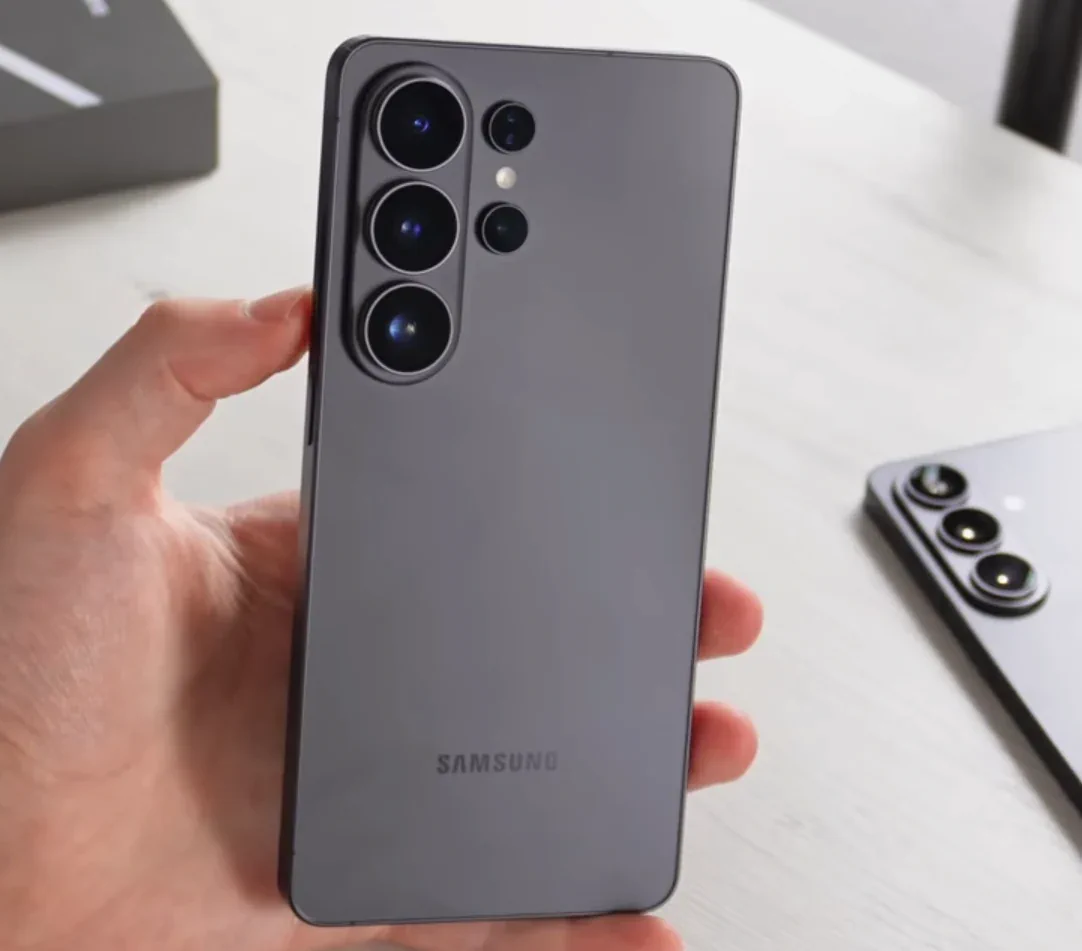
1. Start with intelligent camera features
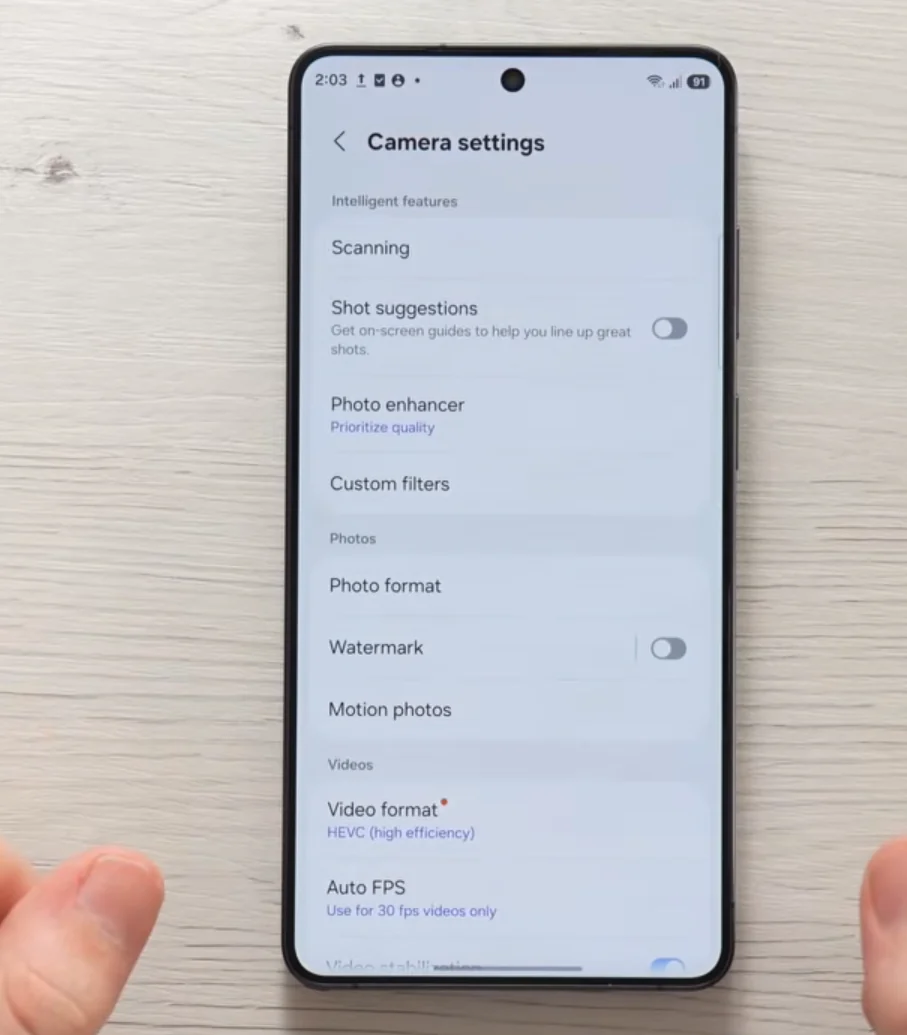
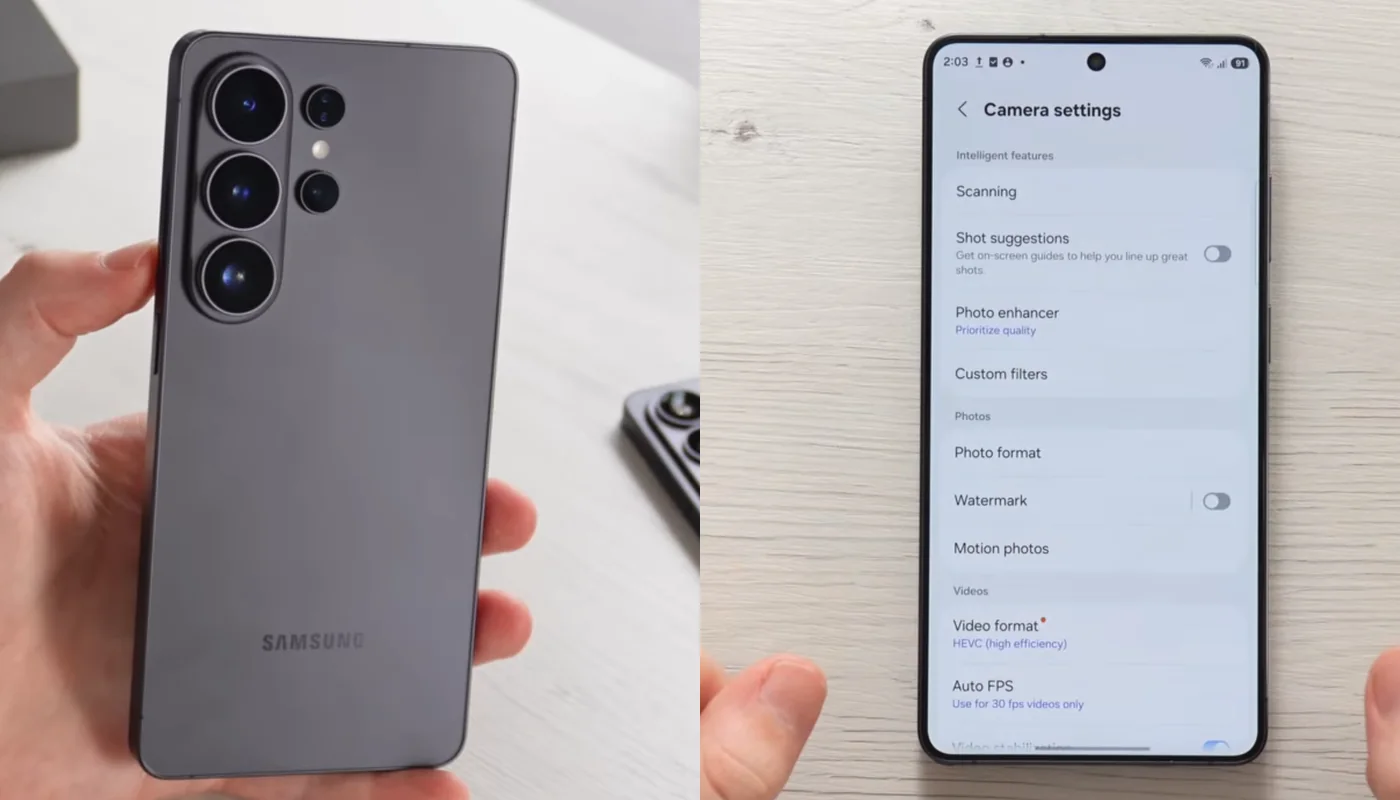
Open the Camera app, enter the normal Photo mode, open the quick controls and then Camera settings. Under intelligent features, enable the scanning options if you want the camera to recognize documents, text and QR codes.
Shot suggestions can also be useful for casual photography because it provides on-screen composition guidance. For image processing, choose Prioritize quality in Photo enhancer when maximum image quality matters more than the fastest possible capture.
Key takeaway
A practical guide to the Galaxy S26 and S26 Ultra camera settings that can improve photo consistency, video workflow, focus, composition and creator controls.
2. Decide how much processing you want
Scene detection can automatically adjust color and contrast to suit the subject. That makes sense for users who want a finished image directly from the phone. If you prefer to edit manually, a more restrained workflow may give you greater control over the final look.
3. JPEG, RAW and high-efficiency photos
For everyday compatibility, JPEG remains the simplest choice. RAW is the better option when you intend to edit exposure, white balance and color later. High-efficiency formats can reduce storage use, but compatibility with some editing and sharing workflows should also be considered.
5 min read
Samsung coverage from PhonesGate. Published Aug 18, 2026.
4. Configure video format for your workflow
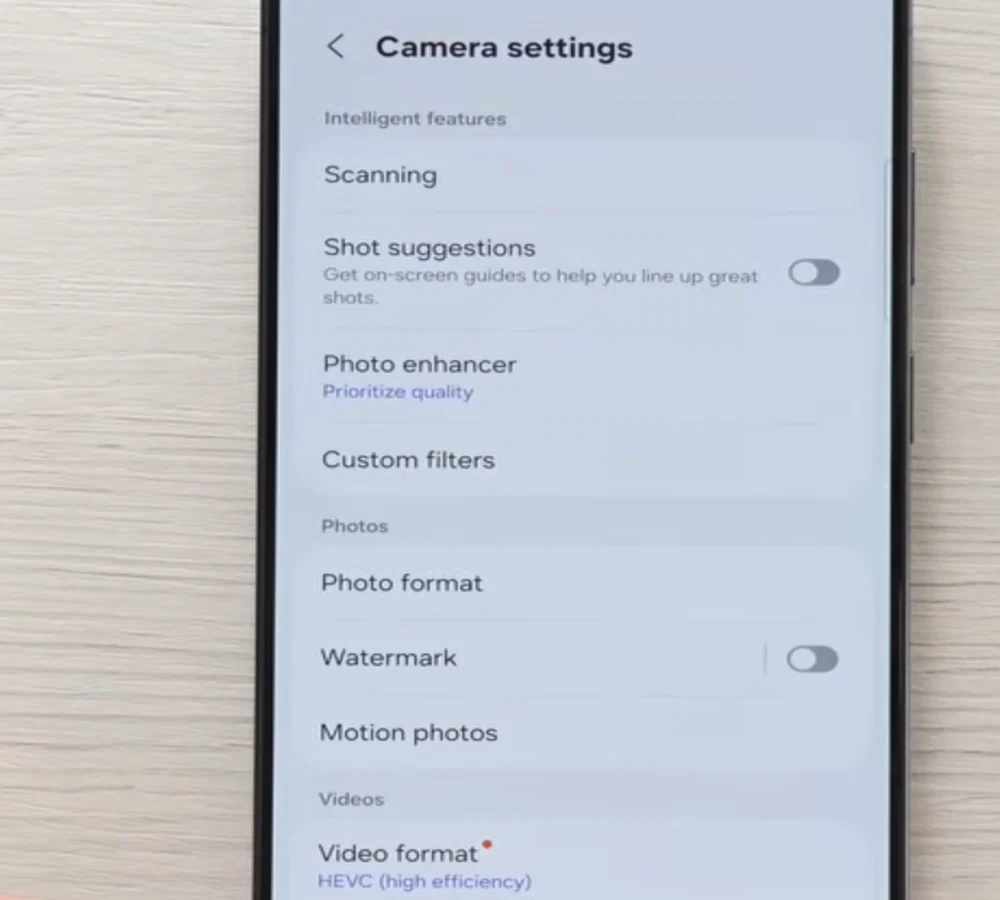
H.264 is a practical choice when broad compatibility and straightforward editing are priorities. High-efficiency video is useful when storage efficiency or features that depend on it are required. LOG recording is aimed at creators who intend to color-grade footage later; it deliberately records a flatter-looking image to preserve more grading flexibility.
Rather than treating HDR as universally good or bad, choose it according to your display and editing workflow. HDR can preserve a wider luminance range, but it also requires compatible playback and careful post-production if you want predictable results.
5. Turn on video stabilization
For handheld recording, stabilization is one of the most useful settings to keep enabled. It can make walking shots and everyday clips noticeably smoother. For controlled tripod work, however, creators may prefer to evaluate stabilization based on the specific shot.
6. Use Tracking Autofocus for moving subjects
Tracking autofocus helps the camera remain locked onto a subject as it moves through the frame. This is especially useful for children, pets, vehicles and handheld video where the distance between camera and subject changes continuously.
7. Enable grid lines and the level
The composition guide is a simple upgrade that costs nothing in image quality. Grid lines make rule-of-thirds framing easier, while the level helps prevent unintentionally tilted horizons. These tools are particularly valuable for architecture, landscapes and product photography.
8. Make the volume buttons useful
Under Shooting methods, the volume keys can be configured for capture or zoom controls. A physical shutter control can reduce awkward screen taps, while volume-button zoom can be convenient during video recording.
9. Show Palm makes remote selfies easier
Samsung's palm gesture can trigger a selfie without touching the phone. It is useful when the device is positioned on a stand or placed far enough away that reaching the shutter would disturb the composition.
10. Configure Settings to keep
If you regularly switch to a particular camera mode, selfie angle, filter, exposure setting or stabilization mode, use Settings to keep. This prevents the camera from reverting every preference when you close and reopen the app.
11. Camera Assistant gives enthusiasts more control
Where Camera Assistant is available, it exposes additional behavior controls. Auto lens switching can be disabled if you prefer to choose the lens yourself. Prioritize focus over speed is worth considering when sharpness is more important than firing the shutter as quickly as possible.
AI-assisted digital zoom enhancement can improve the presentation of heavily zoomed images in some situations, but remember that reconstructed detail is not the same as native optical detail.
12. A practical PhonesGate setup
- Everyday photos: prioritize quality, use composition guides and keep tracking autofocus available.
- Fast sharing: use a broadly compatible photo format and let the phone handle more of the processing.
- Editing photos: use RAW when the additional editing latitude is worth the larger files.
- Everyday video: use stabilization and a format compatible with your normal editing/sharing workflow.
- Advanced video: consider LOG only when you actually plan to color-grade the footage.
Final verdict
The best Galaxy S26 or S26 Ultra camera configuration is not a single magic preset. The strongest setup is the one that matches what happens after you press the shutter. Casual users benefit from Samsung's intelligent assistance and quality-focused processing, while creators should pay closer attention to RAW, LOG, lens selection, autofocus behavior and format compatibility.
Spend a few minutes configuring these options once, save the preferences that matter, and the camera becomes much more predictable every time you open it.