

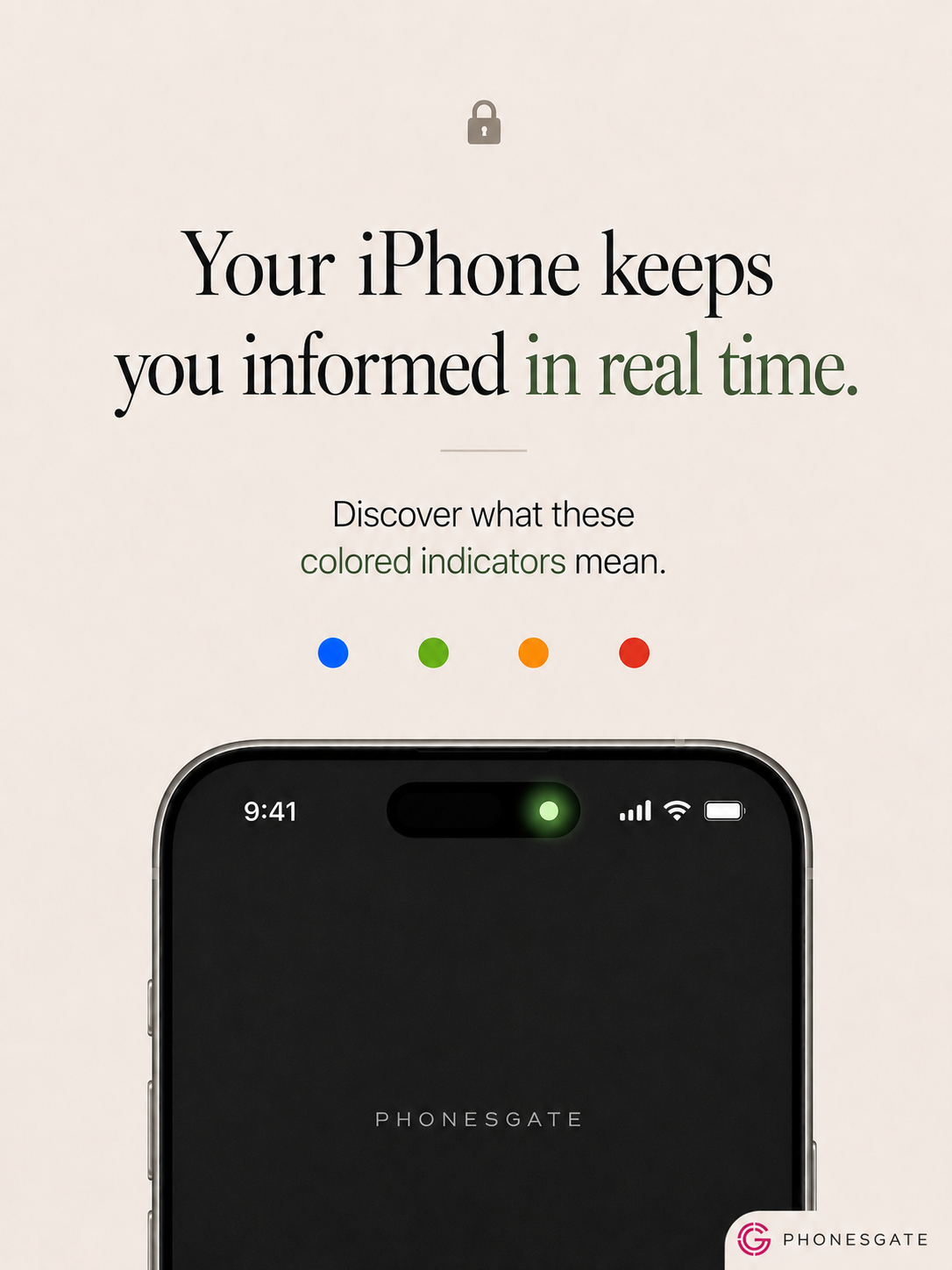
Those tiny colored indicators on your iPhone are there for a reason. They are part of Apple’s privacy system, designed to tell you when sensitive hardware or features are active. If you see a green, orange, blue or red indicator and you are not sure what it means, the short version is simple: your iPhone is trying to keep you informed in real time.
In daily use, the indicators usually answer four very important questions. Is an app using your camera? Is your microphone active? Is location access happening in the background or in the moment? Is screen recording currently running? Once you understand these visual cues, you can spot unusual behavior faster, tighten permissions and feel more confident about what your iPhone is doing.
This guide explains what each privacy indicator means, when it appears, why it matters and what to do if you think an app is using something it should not.
Key takeaway
A practical guide to iPhone privacy indicators, explaining what the blue, green, orange and red signals mean, when they appear and how to review the app permissions behind them.
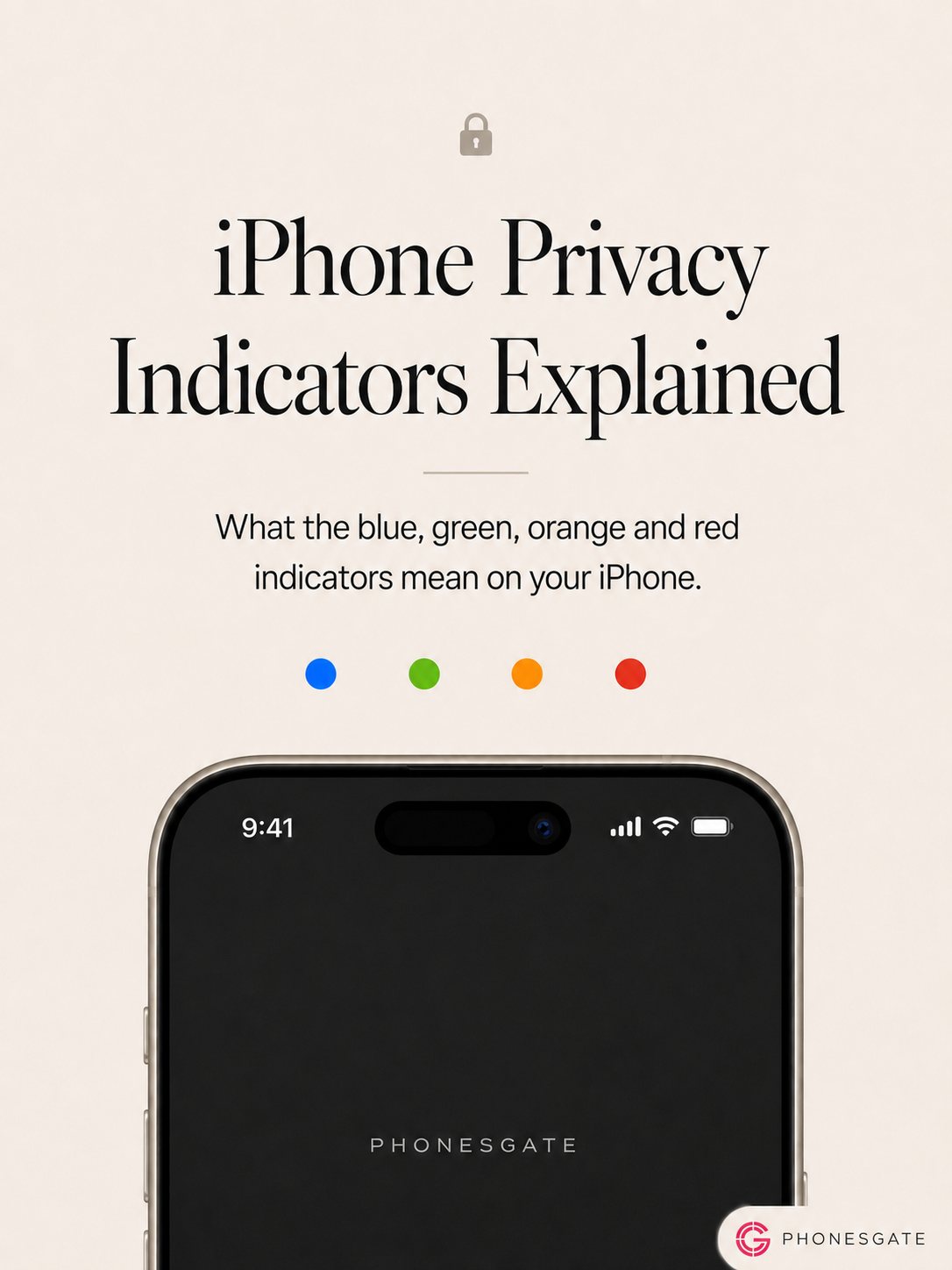
Quick answer: what do the iPhone privacy indicators mean?
Indicator What it usually means Why it matters Blue Location-related activity or active location services Shows that an app or service may be using your location Green The camera is in use, or the camera and microphone are both in use Tells you visual capture is active Orange The microphone is in use Tells you audio capture is active Red Screen recording is active Warns that on-screen activity is being captured
The most important indicators in Apple’s official documentation are the orange and green camera/microphone alerts. Location activity is handled separately through location-related status cues, and screen recording has its own red recording state. In this article, we use the blue/green/orange/red system as a simple reader-friendly way to explain the four kinds of privacy activity iPhone users care about most.
11 min read
iPhone coverage from PhonesGate. Published Jul 26, 2026.
Why these indicators matter
Privacy features are most useful when they are visible at the exact moment something happens. That is the philosophy behind these indicators. Instead of burying privacy information inside a menu, Apple places small but noticeable signals in the status area so that you know when an app has started using something sensitive.
This matters because apps often need access to features that feel highly personal. Your camera can see your surroundings. Your microphone can capture private conversations. Your location can reveal where you live, work and travel. Screen recording can expose messages, account details or anything else visible on your display. Even when access is legitimate, transparency matters.
These indicators do not automatically mean something is wrong. A green indicator during a video call is normal. An orange indicator during a voice memo is expected. A location indicator while using Maps is exactly what you want. The warning sign is not the indicator itself—it is the indicator appearing in a situation where it does not make sense.
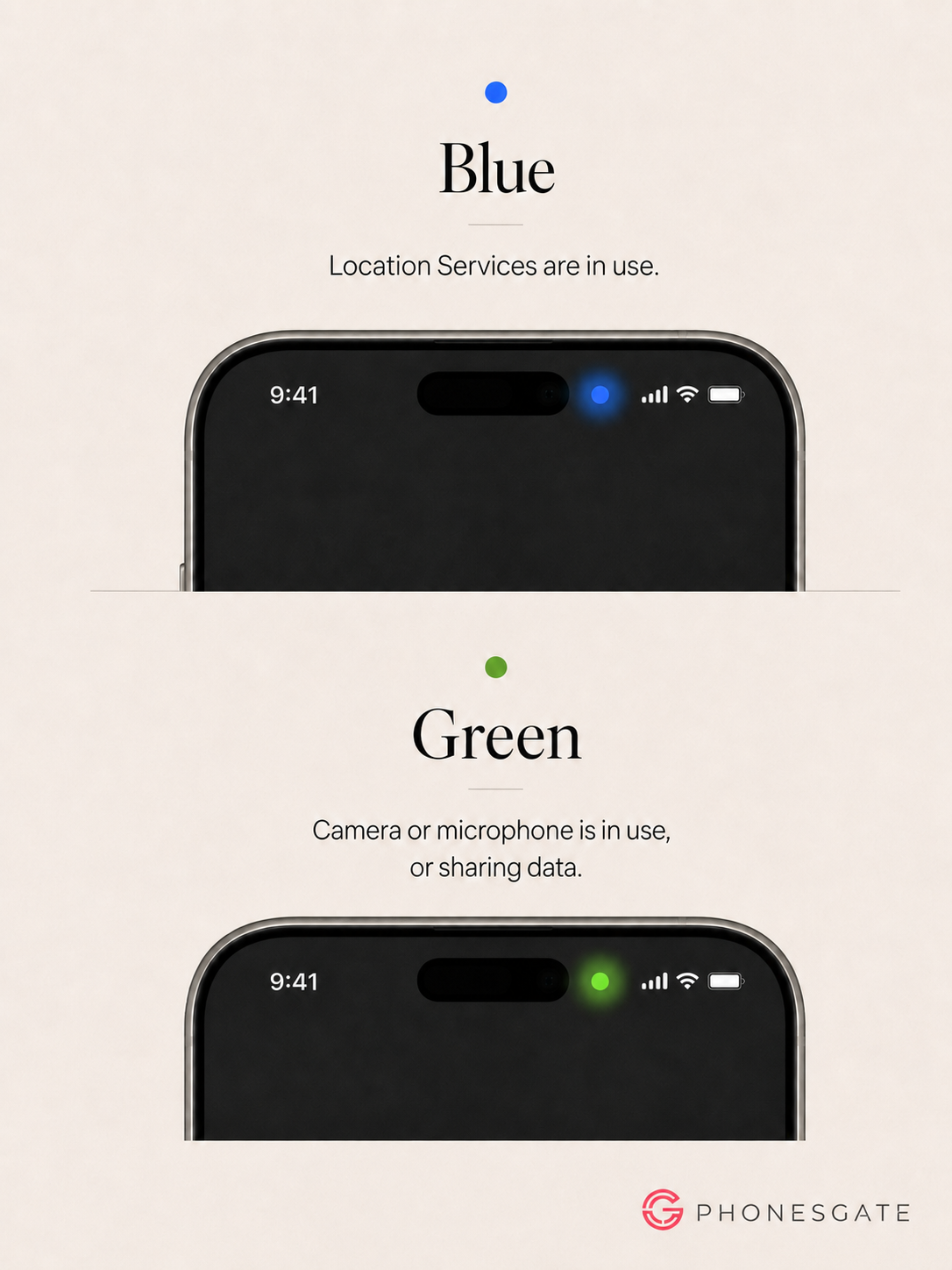
Blue: location services are active
Blue is best understood as the location-related indicator in this visual guide. On iPhone, location activity can appear through Apple’s location status cues, including the location arrow and other status-bar behaviors depending on context. In practical terms, if your phone is signaling location activity, it means an app or system feature is accessing your location.
This can happen when you open navigation apps, weather apps, ride-hailing apps, fitness trackers, camera geotagging features or Find My-related services. Some apps only need your location while you actively use them, while others request more persistent access for automation, safety or tracking features.
The important question is not only whether location is being used, but also why and by which app. If you are in Maps, location access is reasonable. If a flashlight app or a basic game seems to be requesting location activity without a clear reason, that is worth reviewing.
When blue or location activity is normal
- Using Apple Maps or another navigation app
- Requesting local weather information
- Using ride-share or delivery services
- Tracking a walk, run or cycling route
- Using Find My or location-sharing features
When you should double-check it
- You are not actively using an app that should need location
- The same app keeps requesting location in the background
- You recently installed a new app and notices changed behavior
- Your battery drains unusually fast alongside frequent location activity
How to manage location permissions
Go to Settings → Privacy & Security → Location Services. From there you can see which apps can access your location and choose among options like Never, Ask Next Time, While Using the App or, where applicable, Always. For most apps, While Using the App is the safest balance between convenience and privacy.
Green: the camera is in use, or the camera and microphone are in use
The green indicator is one of the clearest privacy cues on iPhone. Apple uses it to tell you that the camera is active, or that the camera and microphone are both being used. If you start a video call, record video, scan a document or open a camera-based social media feature, the green indicator is expected.
The reason this matters is straightforward: camera access is among the most sensitive permissions on any phone. When the camera is on, the app can capture your face, the people around you, documents on your desk or your physical surroundings. If you were ever worried about an app quietly turning on the camera, the green indicator is one of Apple’s most visible safeguards.
In many cases, the green indicator also implies the microphone is active at the same time. A FaceTime call, for example, uses both. If you see green during a video-chat session, that is normal. If you see it while casually browsing an app that should not need visual capture, it is time to investigate.
Normal reasons for the green indicator
- FaceTime, Zoom, Meet or other video calls
- Using the Camera app to take photos or videos
- Scanning QR codes or documents
- Using Instagram, TikTok, Snapchat or similar camera-based features
- Augmented reality features that need a live camera view
What to do if the green indicator seems suspicious
- Open Control Center soon after you notice it. iPhone can show which app recently used the camera or microphone.
- Close the app you suspect.
- Go to Settings → Privacy & Security → Camera and review which apps still have permission.
- Disable camera access for any app that does not clearly need it.
- Update the app or remove it if its behavior still feels unusual.
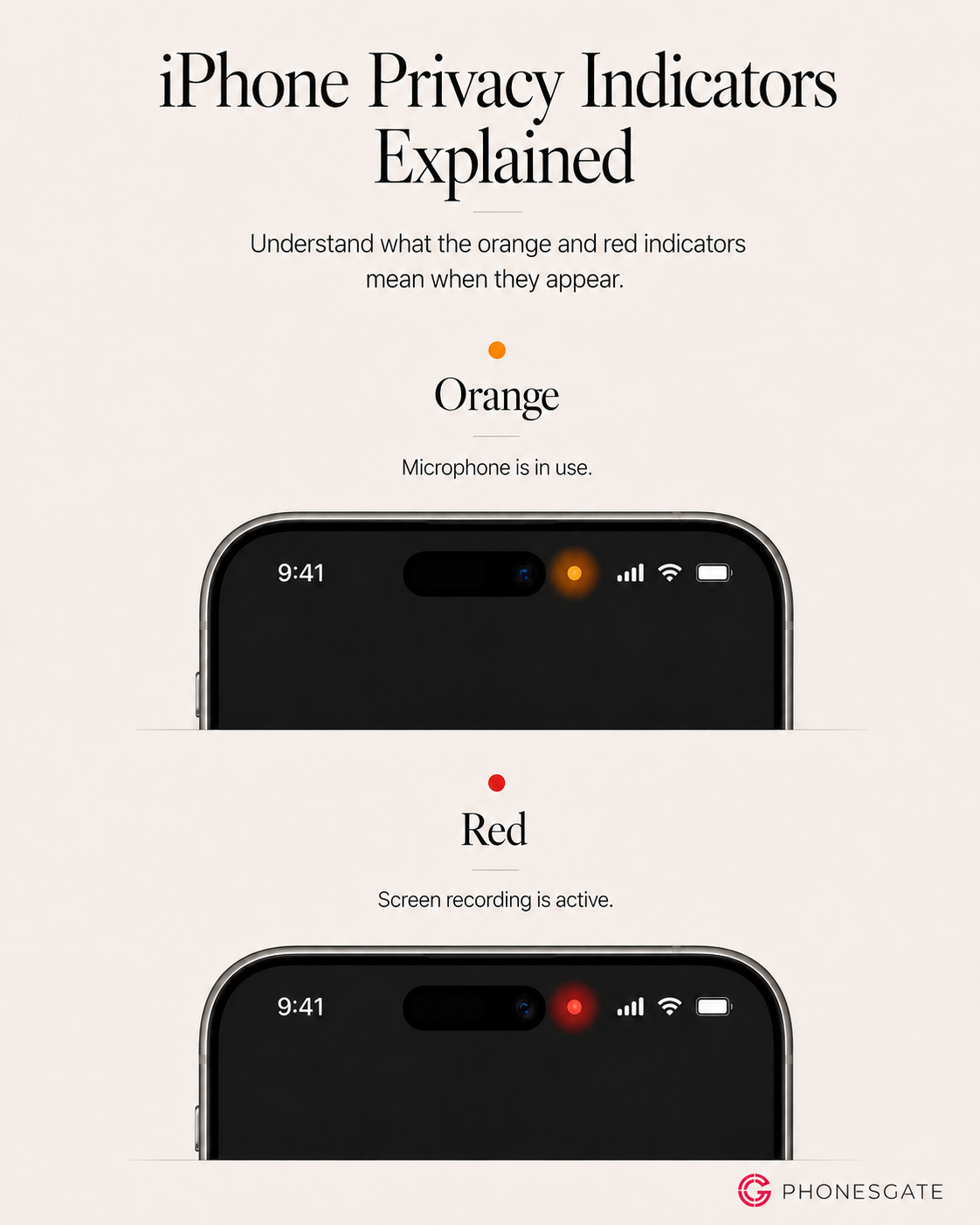
Orange: the microphone is in use
The orange indicator means an app is using your microphone. Apple notes that this can appear as an orange square instead of a round orange dot if the accessibility setting Differentiate Without Color is enabled. Either way, the meaning is the same: audio capture is happening.
This is extremely useful because microphone access is easy to forget. You may intentionally use it for calls, voice notes, dictation or audio messages, but some apps also request microphone access for search, in-app communication, content creation or background features. The orange indicator turns that hidden permission into something visible.
If you start a voice memo, use Siri, record a message, join an audio call or dictate text, the orange indicator is expected. If you notice it while scrolling a simple content app with no clear audio feature in use, that is a good moment to check what just happened.
Common situations where orange appears
- Phone or VoIP calls
- Voice Memos
- Dictation
- Siri or voice assistants
- In-app voice messages
- Audio recording inside social media or editing apps
How to control microphone access
Open Settings → Privacy & Security → Microphone. You will see the apps that have requested microphone access. If an app does not need to listen to you, turn it off. Reducing microphone access is one of the easiest ways to tighten privacy without affecting normal iPhone performance.
Red: screen recording is active
Red is the simplest indicator to understand: if screen recording is active, your iPhone shows a red recording state. That means the device is capturing what is on your display. This is useful when you intentionally record a tutorial, demonstrate a bug, save gameplay or document an app workflow. It is not something you want running accidentally.
Unlike the camera and microphone indicators, screen recording is usually user-triggered. But it can still create privacy risks if you forget it is on. Notifications, passwords, chats, banking information or personal photos could appear while the recording continues. That is why the red indicator matters so much: it reminds you that your screen is being captured.
When red appears legitimately
- Recording a tutorial or app walkthrough
- Capturing gameplay
- Documenting a bug for support
- Showing someone how to change a setting
How to stop screen recording
Tap the red recording indicator or open Control Center and stop the recording there. If you routinely forget to turn it off, make a habit of checking your status area before opening sensitive apps.
How to check which app used the microphone or camera
One of the most useful iPhone privacy tricks is also one of the easiest to miss: after seeing the orange or green indicator, open Control Center. iPhone can show the name of the app that most recently used the microphone or camera. This is often the fastest way to confirm whether the behavior was expected.
That single habit—see an indicator, then check Control Center—can quickly tell you whether you are looking at normal activity or something worth reviewing. It is far more efficient than guessing.
Use App Privacy Report for a bigger picture
If you want more than moment-by-moment indicators, iPhone also offers broader privacy insight through App Privacy Report. It can show how often apps have accessed things like location, camera, microphone, contacts and photos, as well as some network activity details.
This is especially useful if you suspect a pattern rather than a one-time event. Maybe a shopping app seems to request location too often, or a communication app accesses the microphone more than you expected. App Privacy Report gives you a way to step back and review behavior over time.
Best practices for stronger iPhone privacy
- Review permissions regularly: especially after installing new apps.
- Prefer “While Using the App” for location: avoid “Always” unless truly necessary.
- Limit camera and microphone access: only grant it where there is a clear benefit.
- Watch for unusual timing: an indicator appearing when you are not using a relevant feature is the key warning sign.
- Use Control Center as your audit tool: it helps identify recent camera or microphone use quickly.
- Keep iOS up to date: privacy tools improve over time, and updates often refine system behavior.
PhonesGate take
The best privacy feature is not the one with the longest settings page—it is the one you actually notice. That is why the iPhone privacy indicators work. They are small, immediate and hard to ignore once you understand them. You do not need to be a power user or security expert to benefit from them.
The bigger lesson is that indicators are not just warnings; they are habits. If you learn to notice them, open Control Center and occasionally review your permissions, your iPhone becomes much easier to trust. Privacy on a modern smartphone is rarely about turning everything off. It is about knowing when something is active and whether that activity makes sense.
Final verdict
Green means the camera is active, orange means the microphone is active, red means screen recording is active, and blue is a simple reader-friendly shorthand for location-related activity. Once you know these signals, the next step is easy: review permissions, use Control Center to confirm which app was responsible and tighten access where necessary.
Most of the time, these indicators are normal. Their real value appears when they help you catch unexpected behavior before it becomes a privacy problem.
Frequently asked questions
What does the green dot mean on iPhone?
It means the camera is in use, or the camera and microphone are both in use.
What does the orange dot mean on iPhone?
It means an app is using your microphone. With certain accessibility settings, it may appear as an orange square instead of a dot.
What does the red indicator mean on iPhone?
It generally means screen recording is active.
Does iPhone have a blue privacy dot?
Apple’s official privacy documentation focuses mainly on the orange and green indicators, while location activity uses its own status cues. In this guide, blue is used as a simple visual shorthand for location-related activity so the concept is easier to understand at a glance.
How do I know which app used my camera or microphone?
Open Control Center after you notice the indicator. Your iPhone can show the app that recently used the camera or microphone.
Where do I change privacy permissions?
Go to Settings → Privacy & Security, then choose the permission category you want to review, such as Camera, Microphone or Location Services.