

Your iPhone 13, 14, 15 or 16 may feel slower after installing iOS 26, but that does not automatically mean the phone has become obsolete. Apple says software updates can continue completing tasks in the background after installation. During this period, users may notice extra heat, higher battery consumption or temporarily reduced performance.
If the slowdown continues for several days, the more likely causes are power settings, limited storage, excessive background activity, weak cellular coverage, thermal management or an ageing battery—not the age of the processor alone.
Quick answer
Before resetting or replacing your iPhone, check these six settings:
Key takeaway
If iOS 26 makes an iPhone 13, 14, 15 or 16 feel slow, check Low Power Mode, Adaptive Power, 5G, background activity, animations, storage and battery condition before replacing the phone.
- Turn off Low Power Mode while testing performance.
- Review Adaptive Power on supported models.
- Use 5G Auto instead of 5G On.
- Restrict Background App Refresh selectively.
- Enable Reduce Motion if iOS animations feel heavy.
- Free up storage and offload unused apps.
You should also inspect Battery Health and give iOS several days to finish post-update processing.
First, give iOS 26 time to finish updating
An iOS installation may appear complete while additional system work continues. This can include search indexing, photo analysis, application-data updates, cache rebuilding, system-resource downloads and iCloud synchronization.
10 min read
iPhone coverage from PhonesGate. Published Jul 24, 2026.
Apple says this activity can affect battery life and thermal performance for several days. If the phone became warm or slower immediately after updating, leave it connected to power and Wi-Fi overnight, then reassess it after two or three days.
This is more reliable than changing every setting immediately.
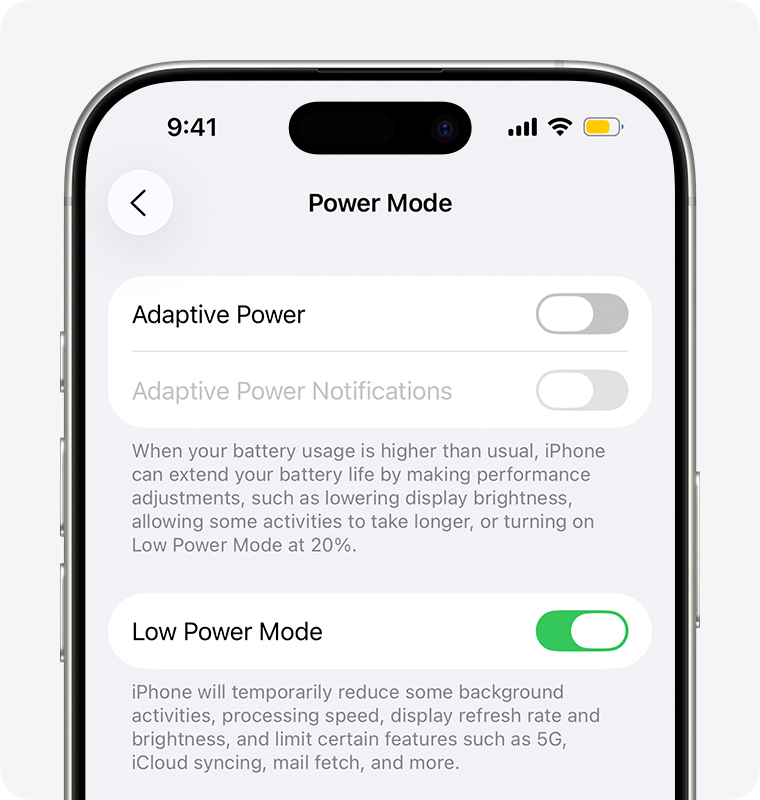
1. Turn off Low Power Mode when testing performance
Low Power Mode is useful when battery life matters more than maximum responsiveness. It is not the correct mode for evaluating whether an iPhone has become permanently slower.
Apple states that Low Power Mode reduces power consumption by limiting or disabling several functions. On ProMotion models, the display refresh rate is limited to 60 frames per second. Background App Refresh, automatic downloads, mail fetching and some visual effects are also restricted.
Where to find it
On iPhone 15 and later:
Settings → Battery → Power Mode → Low Power Mode
On iPhone 13 and iPhone 14:
Settings → Battery → Low Power Mode
Turn it off temporarily and test app-opening speed, scrolling, keyboard response, camera launch and transitions between applications.
Who will notice the biggest difference?
The effect is often most visible on ProMotion models, including the iPhone 13 Pro, 14 Pro, 15 Pro and 16 Pro generations. Returning the display from a 60Hz limit to its adaptive higher refresh rate can make the interface feel considerably smoother even when raw processor performance has not changed.
2. Review Adaptive Power on supported iPhones
Adaptive Power is available on supported recent iPhones. Apple says it can lower brightness, limit background activity and make small performance adjustments when the system predicts that additional battery life will be useful.
Where to find it
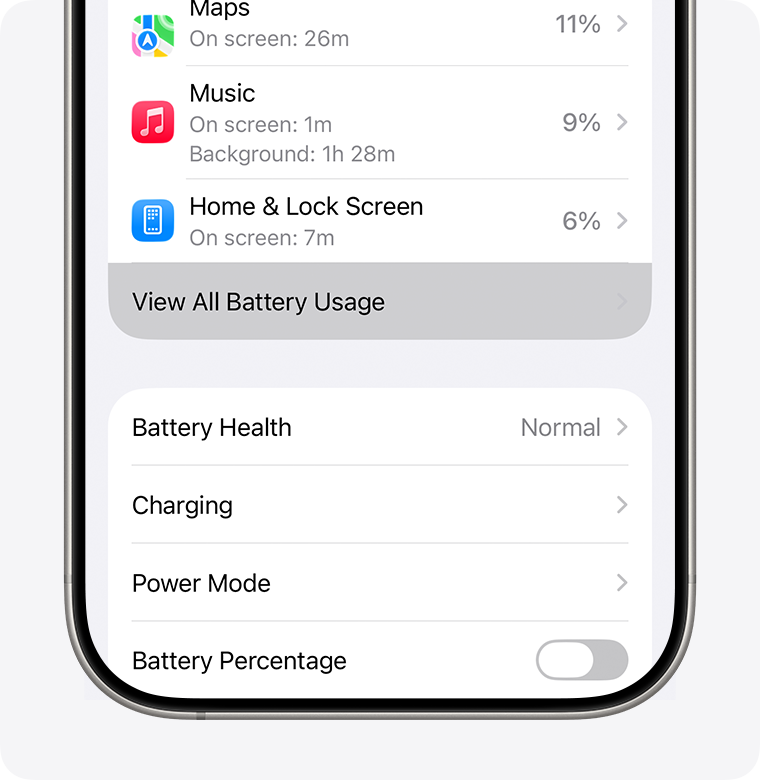
Settings → Battery → Power Mode → Adaptive Power
Should you turn it off?
Leave Adaptive Power enabled when battery endurance matters more than maximum consistency and the phone is operating normally.
Temporarily disable it when diagnosing inconsistent game performance, unexpected brightness reductions or sustained workloads. Adaptive Power should be treated as a battery-versus-performance trade-off, not as a harmful feature.
3. Use 5G Auto instead of 5G On
A weak or unstable cellular signal can increase battery consumption and heat because the modem must work harder to maintain a connection.
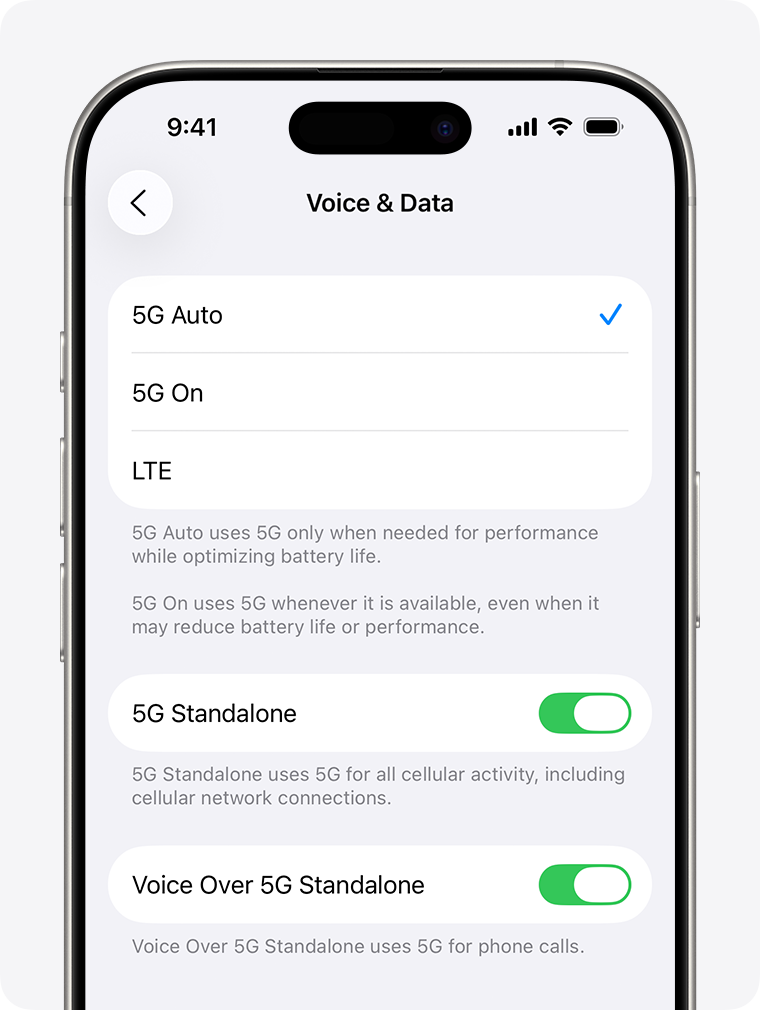
With 5G Auto, the iPhone uses Smart Data Mode and switches to LTE when 5G does not provide a meaningful advantage. Apple says this can save battery life. By comparison, 5G On attempts to use 5G whenever it is available.
Change the setting
Settings → Cellular → Cellular Data Options → Voice & Data → 5G Auto
5G itself does not make the processor slower. However, poor coverage may cause more heat, unstable downloads, delayed app loading and more aggressive thermal management.
4. Restrict Background App Refresh selectively
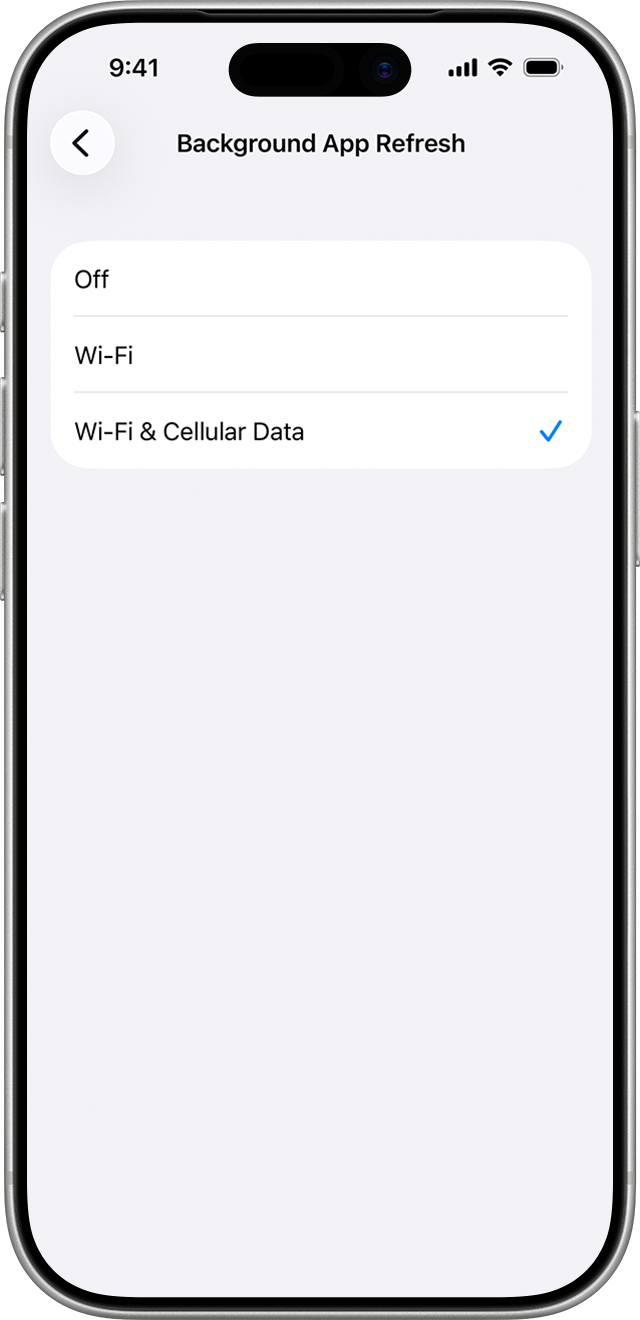
Background App Refresh allows applications to check for new information while they are not actively open. It is useful for messaging, cloud storage, weather and productivity applications, but less valuable for games, shopping apps and rarely used services.
Where to find it
Settings → General → Background App Refresh
Do not immediately disable it for every app. Review the list and turn it off for applications that do not need to update before you open them.
Good candidates may include games, retail apps, rarely used social networks and travel apps outside active trips. Keep it enabled where timely updates matter, such as messaging, navigation, cloud synchronization and authentication applications.
Check which app is responsible
Open:
Settings → Battery → View All Battery Usage
Look for apps showing high Background Activity. This is more effective than disabling background services blindly.
5. Enable Reduce Motion when iOS 26 feels visually heavy
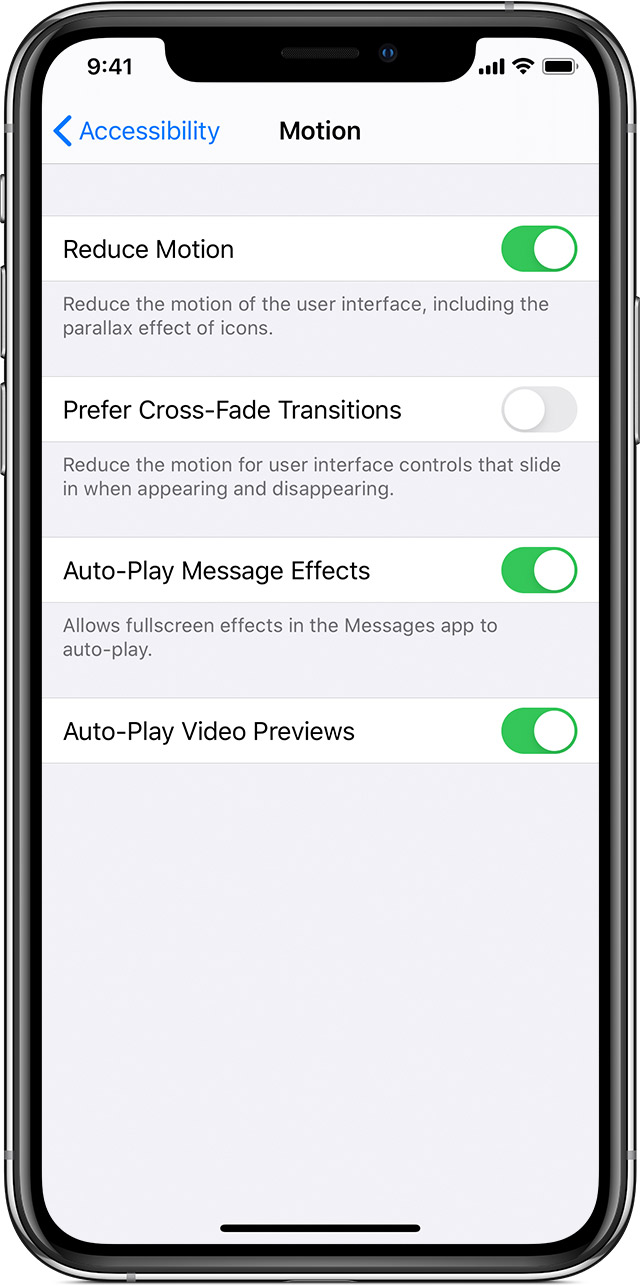
Reduce Motion limits some interface movement and replaces certain zooming or sliding effects with simpler transitions. It does not increase raw CPU or GPU performance, but it can make navigation feel faster and more direct.
Turn it on
Settings → Accessibility → Motion → Reduce Motion
This setting is useful when opening and closing apps feels delayed, interface animations appear heavy, the phone is frequently warm or you simply prefer faster-looking transitions.
Inside the same menu, consider disabling automatic video previews when they are unnecessary.
6. Free up storage and enable Offload Unused Apps
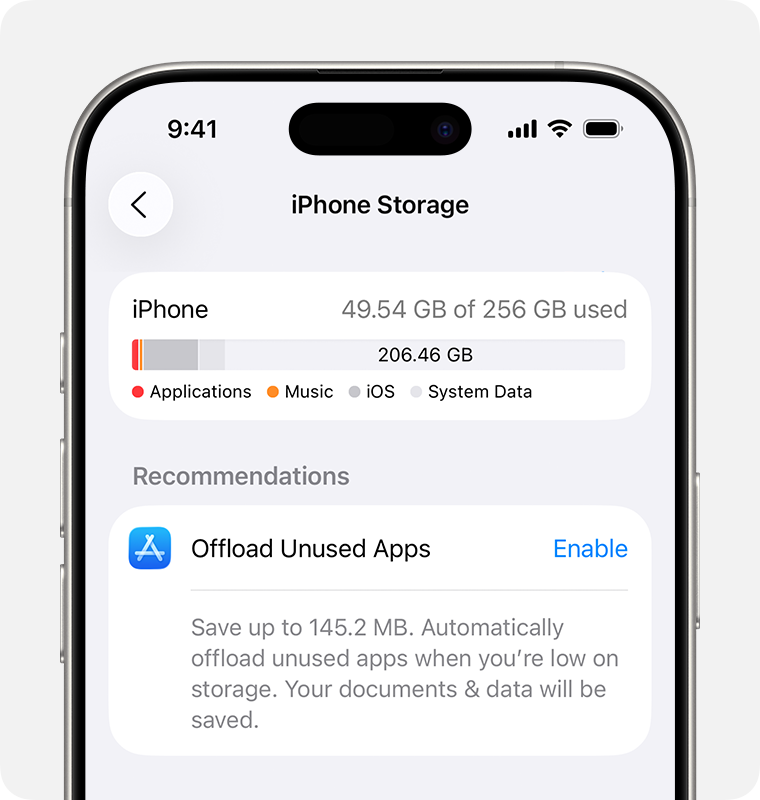
Low available storage can cause real performance problems. Apple recommends maintaining at least 1GB of free space to avoid slowdowns, but keeping substantially more space free is preferable before major updates or when recording high-resolution video.
Check current storage
Settings → General → iPhone Storage
Review large applications, downloaded videos, Messages attachments, offline music, browser downloads and duplicate media.
Enable Offload Unused Apps
Settings → Apps → App Store → Offload Unused Apps
Offloading removes the application while preserving its documents and data. The app can later be reinstalled by tapping its icon.
PhonesGate storage recommendation
Apple’s published minimum is 1GB. PhonesGate recommends aiming for at least 5GB on a 128GB phone and 10GB or more before a major iOS update. These larger values are practical PhonesGate recommendations, not official Apple requirements.
The most important check: Battery Health
No group of interface settings can fully correct a chemically aged battery that can no longer provide stable peak power.
Apple explains that iOS monitors battery condition, temperature, charge level and impedance. When necessary, the system can manage CPU and GPU demand to prevent unexpected shutdowns. Visible effects may include longer app launches, lower frame rates, reduced brightness and applications reloading more frequently.
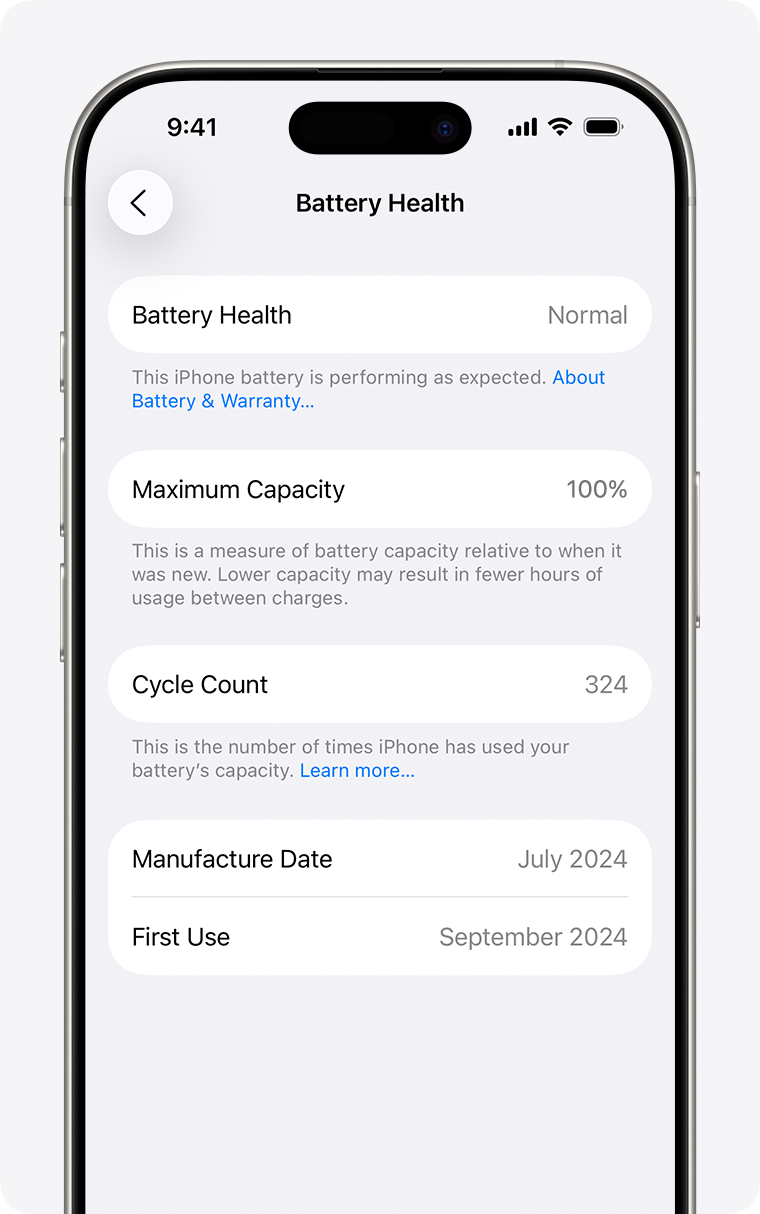
Check battery condition
On iPhone 15 and later:
Settings → Battery → Battery Health
On iPhone 14 and earlier:
Settings → Battery → Battery Health & Charging
Review Maximum Capacity, Peak Performance Capability, cycle information on supported devices and any Service recommendation.
By 2026, many iPhone 13 units have been charged for several years. Two phones with the same processor can perform differently when one has a healthy battery and the other has reduced peak-power capability.
Do not ignore temperature
An iPhone may intentionally reduce performance when it becomes too hot or too cold. Common causes include gaming while charging, direct sunlight, navigation near a hot windshield, weak cellular coverage, wireless charging under a thick case and background indexing after an update.
Allow the device to cool naturally. Do not place it in a refrigerator or freezer.
Settings by iPhone generation
Model Most relevant checks iPhone 13 / 13 Pro Low Power Mode, 5G Auto, Background App Refresh, Reduce Motion, storage and Battery Health iPhone 14 / 14 Pro Same checks; Pro models may also reduce Always-On Display use for battery savings iPhone 15 / 15 Plus Low Power Mode, 5G Auto, Background App Refresh, Reduce Motion, storage and Battery Health iPhone 15 Pro / Pro Max All six checks, including Adaptive Power where available iPhone 16 series All six checks, including Adaptive Power
What not to do
Do not constantly close every app
Closing every application from the app switcher is not a reliable performance or battery optimization method. Close an app when it is frozen or malfunctioning.
Do not disable every background service
Disabling all background activity may delay messages, cloud synchronization and app updates without producing a meaningful speed improvement.
Do not reset the phone immediately
A factory reset should come after waiting for update tasks, installing the latest stable iOS release, checking storage, reviewing Battery Health and identifying abnormal application activity.
Do not judge performance while Low Power Mode is active
Low Power Mode is designed to prioritize endurance. Reduced refresh rates and slower background behavior are expected consequences.
PhonesGate take: iOS 26 is not the only variable
Social-media posts often suggest that a hidden group of switches will make every older iPhone fast again. The reality is more nuanced.
An iPhone 13 with a healthy battery, adequate storage and moderate temperature can still provide strong everyday performance. An iPhone 16 with almost no free storage, poor cellular coverage and Low Power Mode enabled can feel less responsive despite newer hardware.
The most effective approach is diagnostic:
- Wait for post-update tasks to finish.
- Install the latest stable iOS point release.
- Turn off Low Power Mode while testing.
- Check storage and battery condition.
- Review apps consuming power in the background.
- Adjust visual and cellular settings according to your priorities.
Final verdict
iOS 26 can temporarily make an iPhone feel slower after installation, but persistent problems usually have a more specific cause.
For most users, the best baseline is Low Power Mode off during normal use, 5G Auto enabled, Background App Refresh restricted selectively, adequate free storage and Adaptive Power configured according to battery priorities.
If an iPhone still shows longer app-launch times, lower frame rates and frequent heat after these checks, Battery Health should be investigated before blaming the processor or replacing the entire phone.
The iPhone may not need an upgrade. It may need time, storage cleanup, a setting adjustment—or a new battery.
Frequently asked questions
Does iOS 26 intentionally slow down the iPhone 13?
There is no evidence that iOS 26 intentionally slows every iPhone 13. Post-update processing, battery ageing, low storage, temperature and Low Power Mode can all affect performance.
How long should battery drain continue after updating?
Apple recommends waiting a few days because system tasks may continue in the background after installation.
Does Reduce Motion improve performance?
It does not increase processor speed, but it reduces interface animations and can make navigation feel faster.
Should Adaptive Power be disabled?
Not automatically. Leave it enabled for battery endurance. Temporarily disable it only when diagnosing performance consistency on supported models.
Can replacing the battery make an iPhone faster?
Yes, when battery degradation has caused power-management restrictions. A replacement can restore more consistent peak performance.
How much storage should remain free?
Apple recommends at least 1GB to avoid slowdowns. More space is advisable for updates, large applications and video recording.