

Most common iPhone problems do not require a factory reset, a repair appointment or a new phone. Overheating, full storage, unstable Wi-Fi, fast battery drain and frozen apps usually have identifiable causes—and the safest fixes should be tried in a specific order.
The key is diagnosis. A phone that becomes warm during an update is different from one that overheats while idle. A Wi-Fi problem affecting one network is different from a fault that appears everywhere. And an app that freezes by itself should not be treated like a system-wide failure.
Quick answer
Problem First action Last-resort action iPhone overheating Stop intensive use, move it away from heat and let it cool naturally Seek service if it repeatedly overheats while idle Storage full Open iPhone Storage and follow Apple’s recommendations Delete local media or large apps after confirming backups Wi-Fi disconnecting Restart the iPhone and router, then test another network Reset Network Settings only after other checks fail Battery draining quickly Review Battery Usage and wait several days after a major update Replace the battery if iOS recommends service Apps freezing or phone feeling slow Close only the affected app, reopen it and install updates Delete and reinstall the app, or seek service for system-wide faults
Key takeaway
A practical guide to fixing iPhone overheating, full storage, unstable Wi-Fi, fast battery drain and frozen apps without using destructive resets too early.
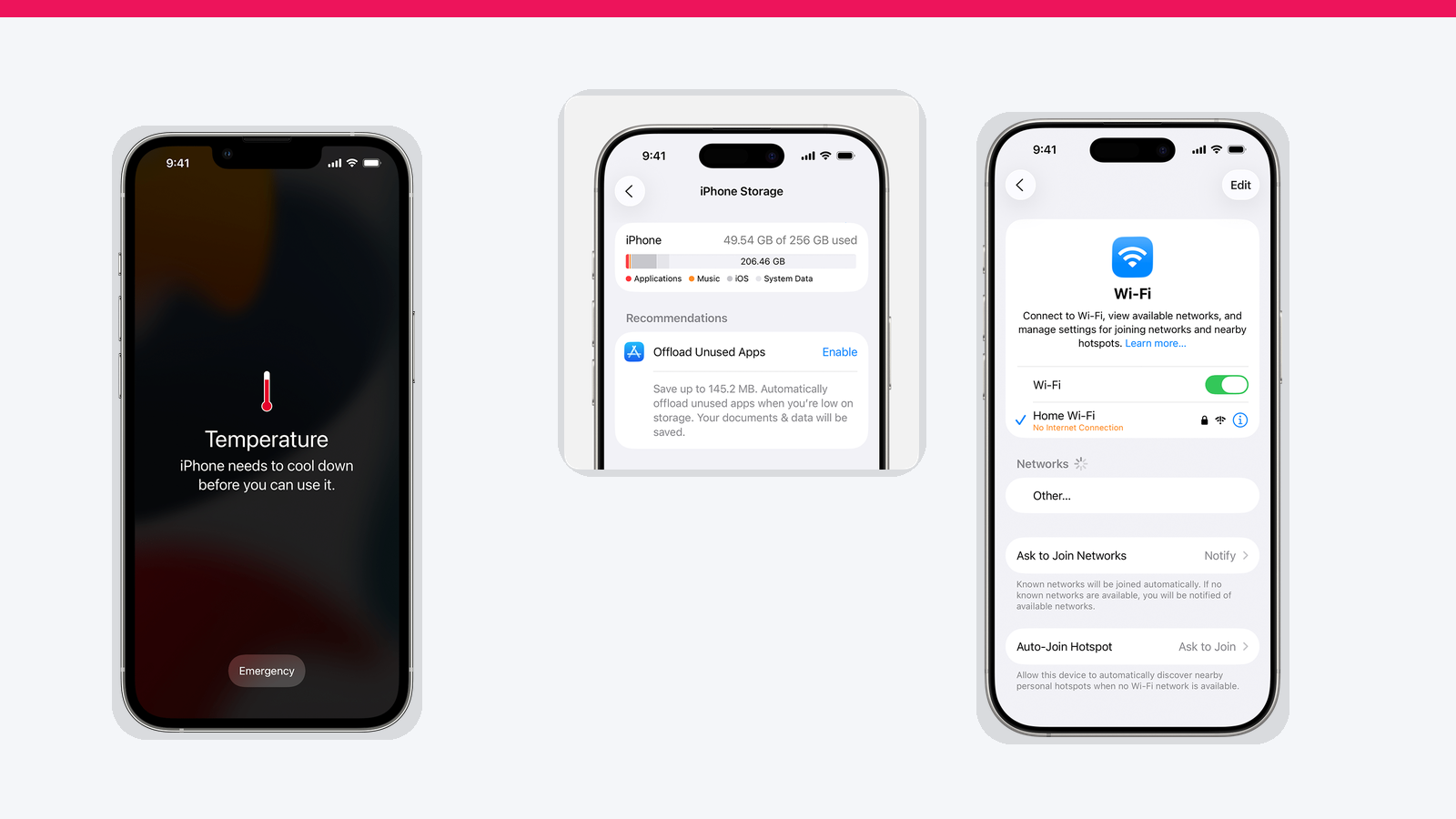
Use this diagnostic order before changing everything
- Identify the scope: one app, one Wi-Fi network or the entire phone.
- Check timing: did the issue begin after an update, restore, new app or hardware change?
- Restart safely: restart the affected app, the iPhone and any network equipment involved.
- Check storage, temperature and battery health: these three conditions can affect multiple symptoms.
- Update: install current app and iOS updates before destructive troubleshooting.
- Reset only the affected subsystem: use Reset Network Settings only for persistent network problems.
- Escalate: seek service when the issue involves battery swelling, repeated shutdowns, liquid damage or persistent overheating.
1. Your iPhone is overheating
An iPhone becoming warm does not automatically indicate a fault. Apple says the device may feel warmer during initial setup, backup restoration, software updates, wireless charging, gaming, camera use and high-quality video streaming.
The situation becomes more serious when iOS displays a temperature warning, charging stops, the display dims, cellular reception weakens or performance drops sharply.
10 min read
iPhone coverage from PhonesGate. Published Jul 25, 2026.
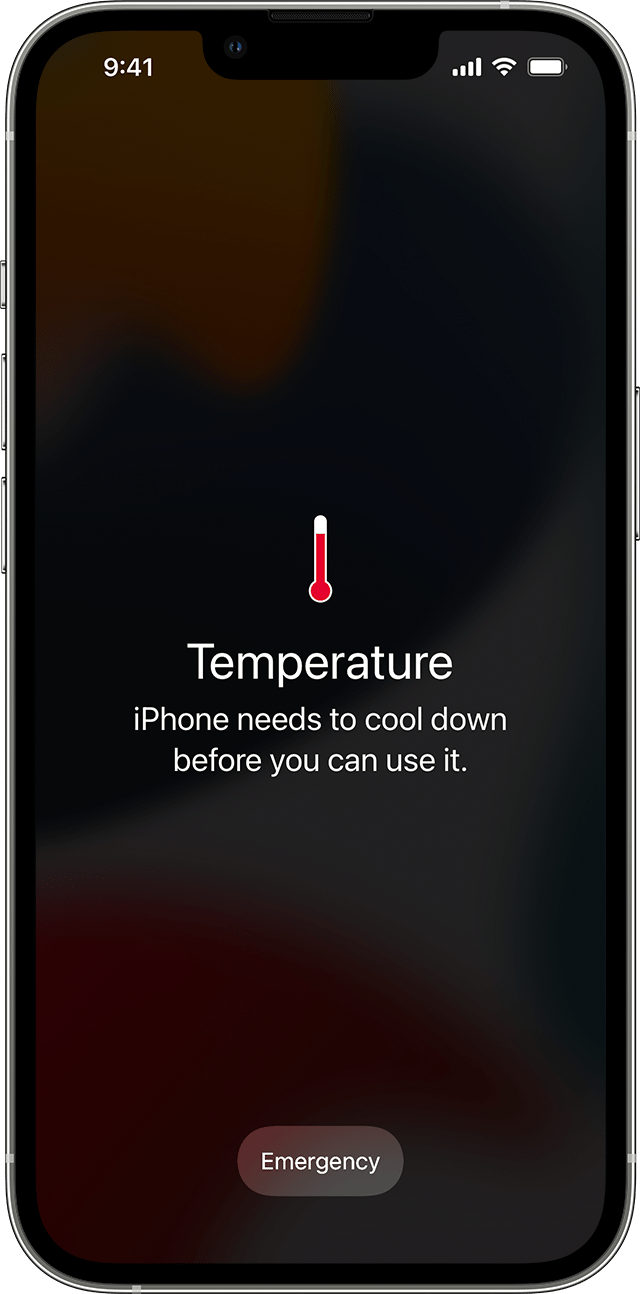
What to do immediately
- Stop gaming, navigation, video recording or other intensive tasks.
- Disconnect the charger.
- Move the phone away from direct sunlight, a hot car or another heat source.
- Turn the device off when a temperature warning prevents normal use.
- Let it cool naturally before charging or continuing the task.
What not to do
Do not put the iPhone in a refrigerator, freezer or directly against ice. Rapid temperature changes can introduce condensation and create additional hardware risk.
Do not continue gaming, recording or navigating while the phone is displaying a temperature warning. iOS is already limiting functions to protect internal components.
When overheating may indicate a hardware problem
Arrange an inspection when the iPhone becomes unusually hot while idle, repeatedly shuts down, shows battery swelling, has a chemical smell, was recently dropped or exposed to liquid, or continues displaying temperature warnings in a normal indoor environment.
2. iPhone storage is full
A nearly full iPhone can affect updates, camera recording, application installs and overall responsiveness. Apple recommends using the built-in storage screen rather than relying on third-party “cleaner” applications.
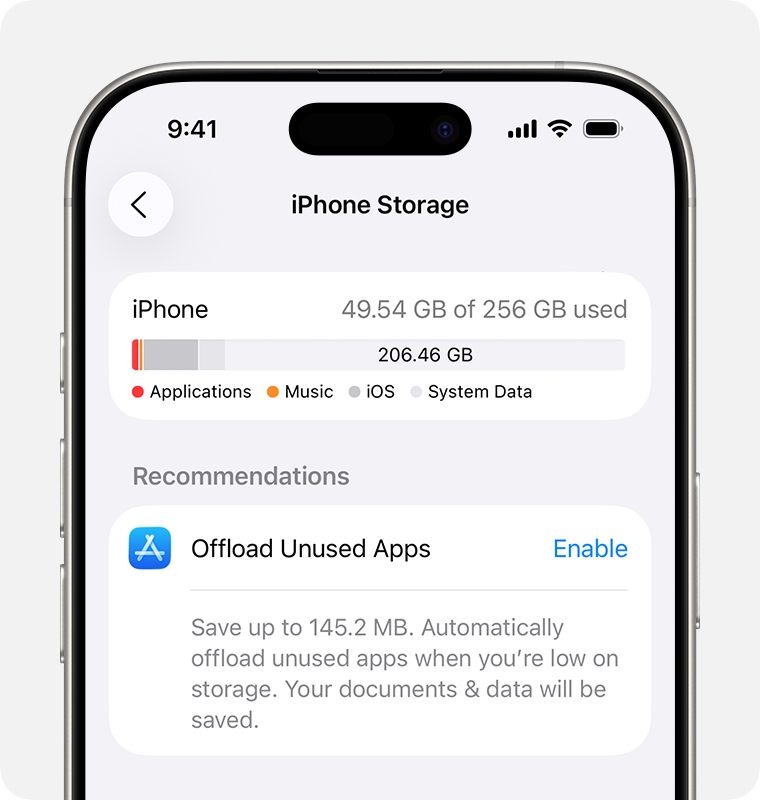
Check what is using space
Settings → General → iPhone Storage
The storage page shows recommendations and a list of apps ordered by usage. Tap an app to distinguish between the application itself and its documents or downloaded data.
Offload or delete?
- Offload App: removes the application but keeps its documents and data.
- Delete App: removes both the application and its related local data.
Offloading is safer when you expect to reinstall an app later. Deleting is more effective when the app’s documents or cached downloads are the real source of the problem.
Where the largest savings usually come from
- Locally downloaded videos and streaming content
- Large Messages attachments
- Duplicate or unnecessary camera videos
- Offline music and podcasts
- Large games that are no longer used
- Files saved locally from Safari or cloud-storage apps
Before deleting photos or videos, confirm that they are backed up and accessible from another device. “Storage full” should not become “media permanently lost.”
3. Wi-Fi keeps disconnecting
Resetting Network Settings can fix certain persistent problems, but it should not be the first step. Apple recommends checking the iPhone, the specific network, VPN software and router behavior before erasing saved network configuration.
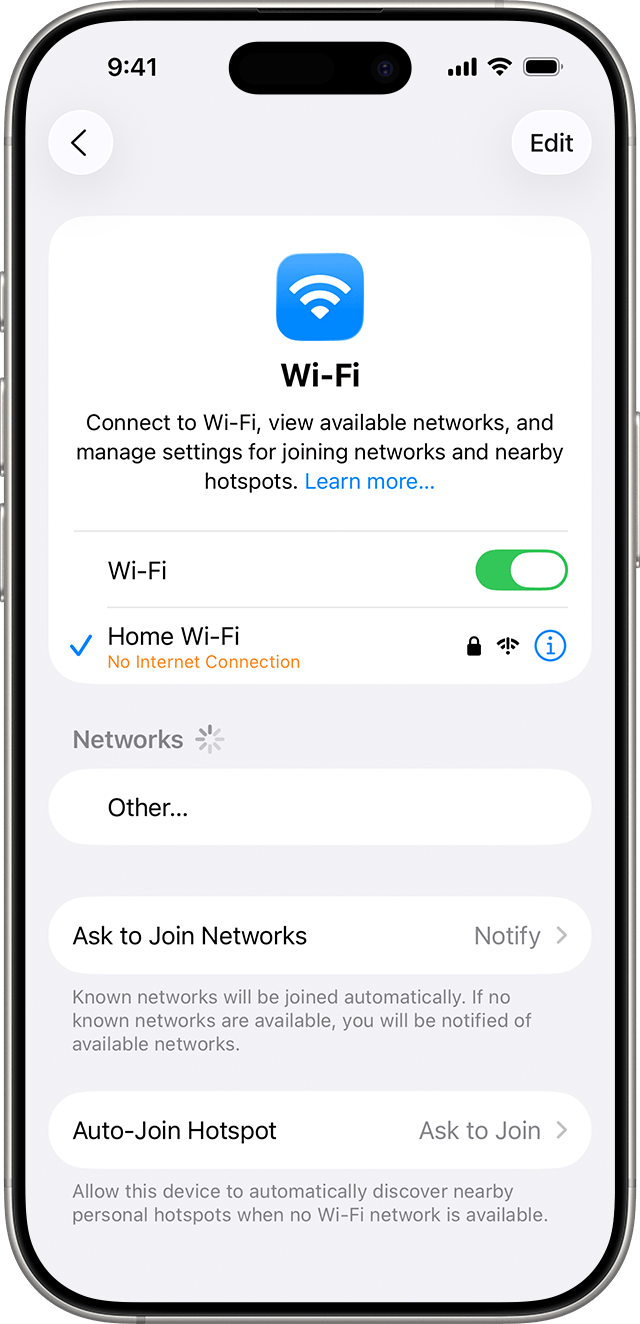
Use this order
- Confirm Wi-Fi is enabled and Airplane Mode is off.
- Restart the iPhone.
- Restart the router and modem.
- Test another phone or computer on the same network.
- Test the iPhone on a different Wi-Fi network.
- Temporarily remove or disable VPN and security software when relevant.
- Forget the affected network and reconnect using its password.
- Install current iOS and router firmware updates.
- Reset Network Settings only if the problem continues.
What Reset Network Settings removes
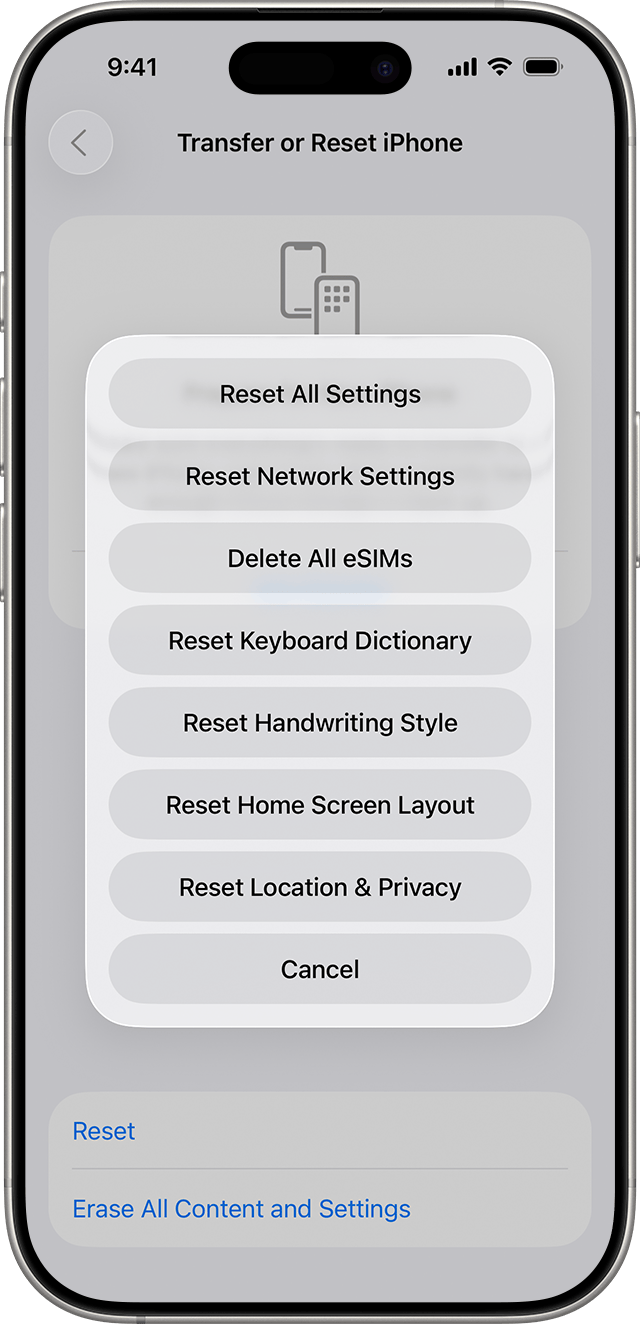
Use:
Settings → General → Transfer or Reset iPhone → Reset → Reset Network Settings
This removes saved Wi-Fi networks and passwords, mobile-network settings, VPN settings and APN configuration. A work or school device may require help from its administrator before performing this reset.
How to identify where the fault is
- Only one network fails: router, ISP or local network configuration is more likely.
- Every network fails: focus on the iPhone, VPN configuration or hardware.
- Other devices also fail: restart the router and contact the ISP if necessary.
- Wi-Fi is greyed out: restart the iPhone; persistent cases may require service.
4. Battery drains much faster than expected
Battery drain should be investigated with data rather than guesswork. Apple’s Battery screen shows which applications and system activities are consuming energy.
After a major iOS update, indexing and other background tasks may continue for several days. Apple recommends waiting before deciding that an update has permanently damaged battery life.
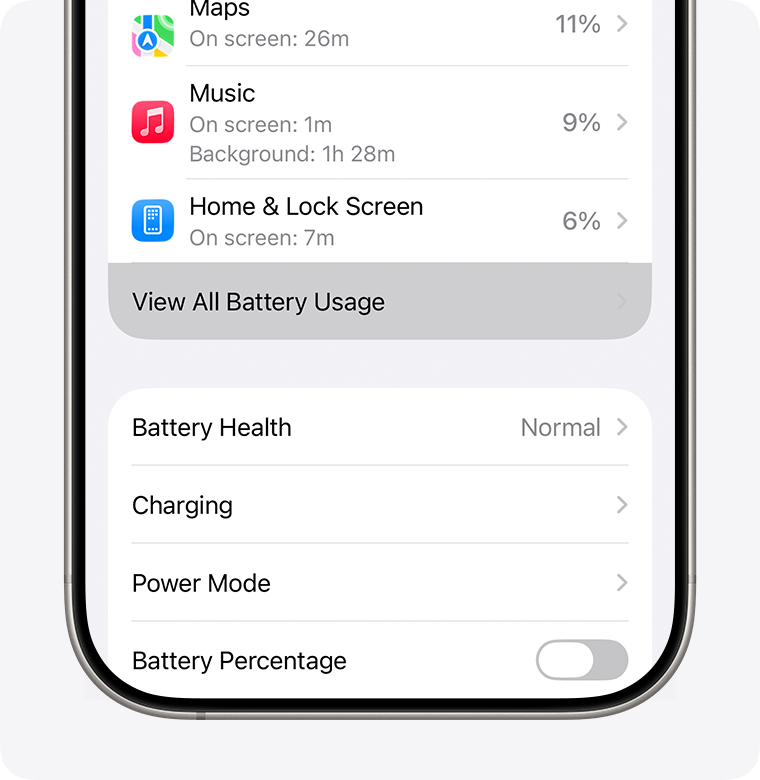
Where to check
Settings → Battery → View All Battery Usage
Look for:
- High Background Activity
- Long on-screen usage
- Low signal or no mobile coverage
- Frequent notifications waking the display
- An application behaving differently from previous days
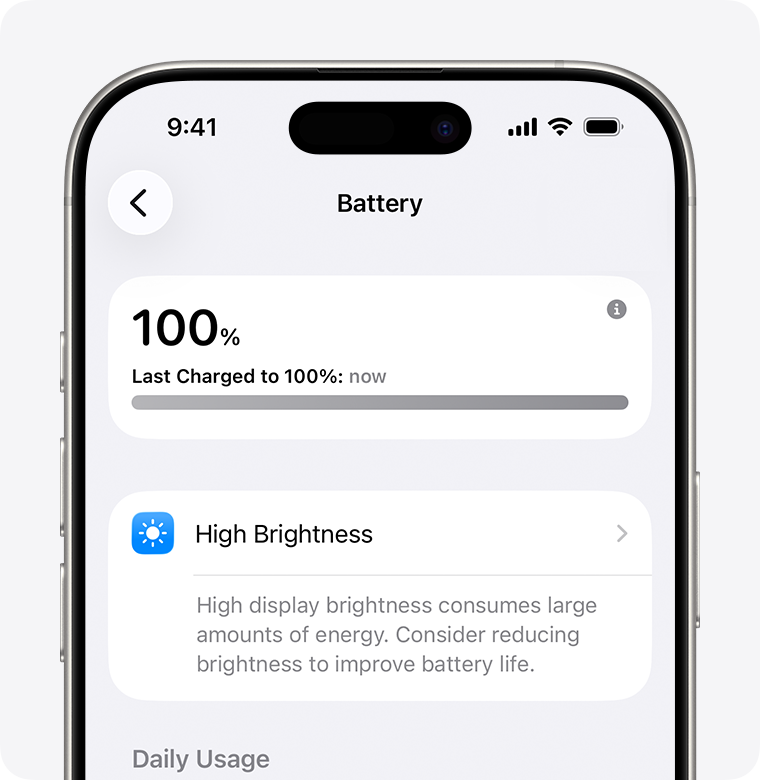
Practical battery fixes
- Use Wi-Fi where practical and stay in areas with stronger signal.
- Use 5G Auto instead of forcing 5G continuously.
- Reduce unnecessary display brightness.
- Restrict notifications from apps that wake the screen constantly.
- Use Low Power Mode when longer endurance matters more than maximum performance.
- Use Adaptive Power on supported iPhones when appropriate.
- Update or remove an app showing abnormal battery use.
Check Battery Health
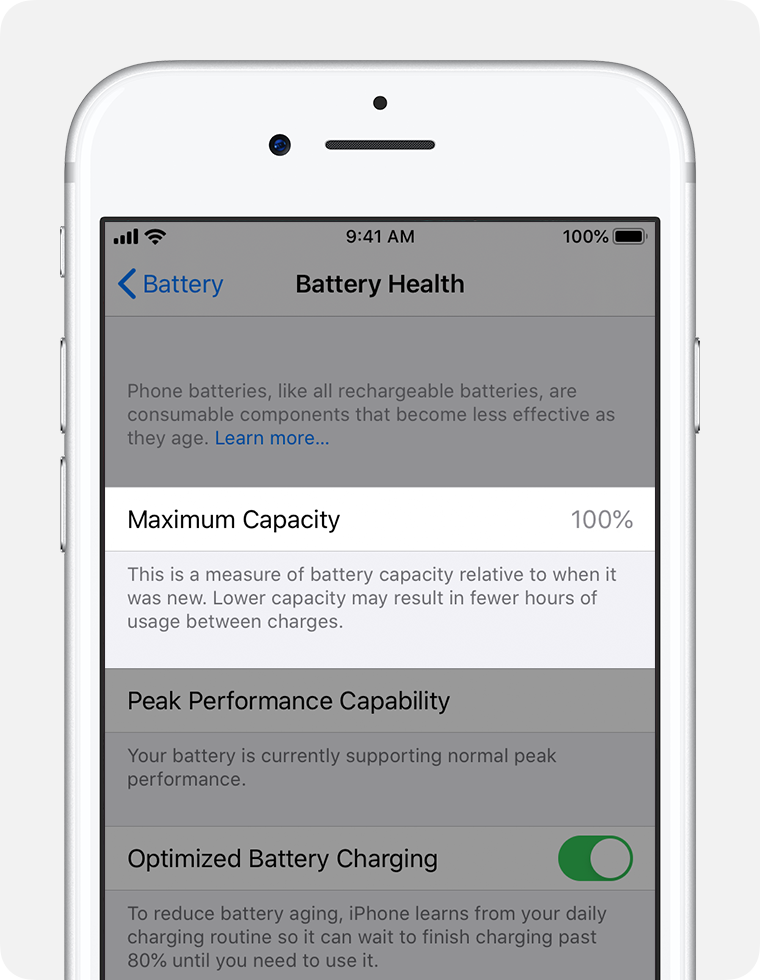
On recent iPhones, open:
Settings → Battery → Battery Health
Older supported models may display Battery Health & Charging. If iOS displays “Service,” Apple recommends considering battery replacement to restore capacity and full performance.
5. Apps freeze, close unexpectedly or the iPhone feels slow
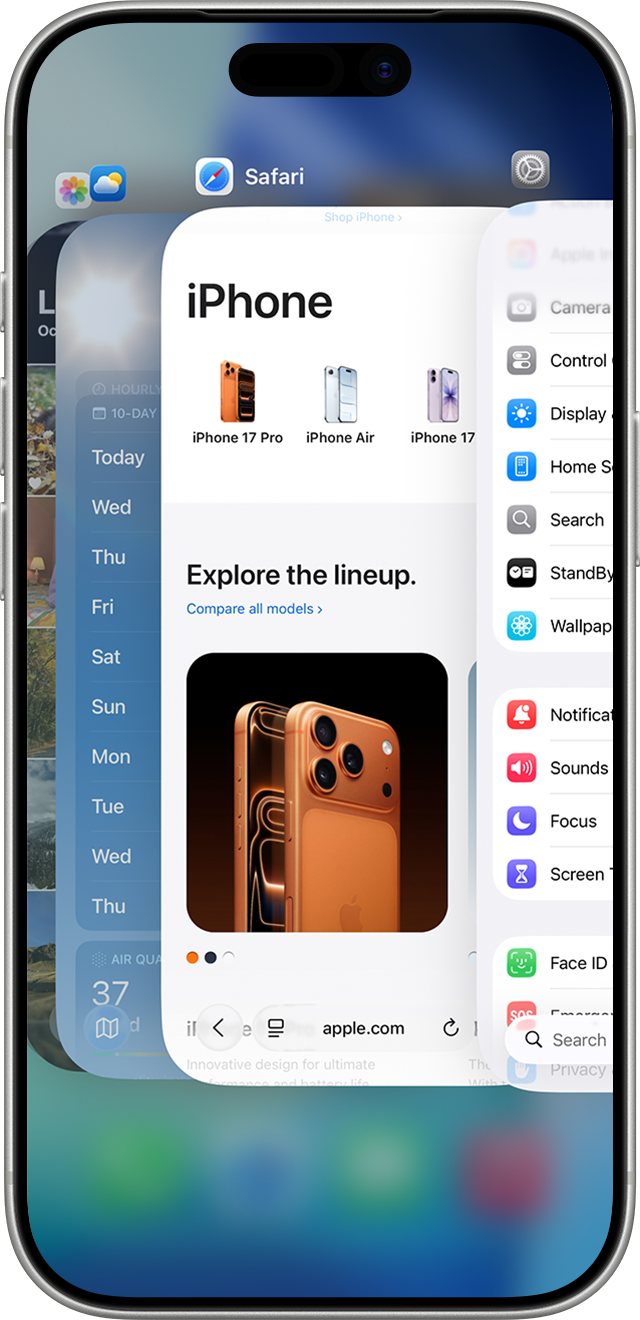
When one app freezes, treat it as an app problem first. Closing every application repeatedly is not a general performance optimization. Apple advises closing an app only when it is unresponsive.
Fix one frozen app
- Open the App Switcher.
- Swipe to the affected app.
- Swipe the app preview upward to close it.
- Reopen the app.
- Restart the iPhone if the app freezes again.
- Install App Store and iOS updates.
- Delete and redownload the app if the issue continues, after checking whether it stores unsynced local data.
If the entire iPhone is frozen
On an iPhone with Face ID:
- Press and quickly release Volume Up.
- Press and quickly release Volume Down.
- Press and hold the Side button until the Apple logo appears.
A force restart does not erase the phone. It is different from a factory reset.
If the whole phone feels slow
Check network conditions, available storage, Low Power Mode, temperature and Battery Health. Apple recommends maintaining at least 1GB of free storage to avoid slowdowns, although keeping considerably more free space is practical for updates and camera use.
What viral iPhone tips often get wrong
“Reset Network Settings before blaming the router”
Too aggressive. First test the router, another device and another network. Reset Network Settings erases saved configuration and should be used only after safer checks fail.
“Close all unused apps to cool the phone”
Closing a malfunctioning or intensive app can help, but routinely clearing every app is not a general optimization. Reopening them requires the data to be loaded again.
“Restarting fixes full storage”
A restart may clear temporary conditions but does not remove large photos, videos, messages or downloaded application data. The Storage screen is the correct diagnostic tool.
“Battery drain after an update means the update is bad”
Not necessarily. Background tasks may continue for several days after installation. Check Battery insights and usage before drawing conclusions.
When you should stop troubleshooting and seek service
- The battery is swollen or pushing against the display.
- The phone repeatedly overheats while idle in a normal environment.
- The device smells unusual or shows signs of liquid damage.
- Wi-Fi remains unavailable or greyed out across every network.
- The phone restarts or shuts down repeatedly.
- The touch screen remains unresponsive after restarting and removing accessories or screen protectors.
- Battery Health recommends service.
PhonesGate take
The safest way to fix an iPhone is to avoid treating every symptom as the same problem. Storage issues are solved with storage management. Network issues require network isolation. Battery problems need usage data and health checks. Temperature warnings require cooling—not experimentation.
The best troubleshooting sequence protects both the user’s data and the phone’s configuration: diagnose first, restart second, update third, reset only the affected system and use factory reset or hardware service only when the evidence supports it.
Final verdict
The five most common iPhone problems are usually manageable without replacing the phone. The biggest mistake is using a destructive fix too early.
Start with the smallest relevant action. Let an overheated phone cool. Use iPhone Storage instead of random cleaner apps. Test Wi-Fi before resetting network settings. Read the Battery screen before blaming iOS. Close only apps that have actually frozen.
When those steps fail—or when physical battery, heat or liquid symptoms appear—stop experimenting and move to professional support.
Frequently asked questions
Does Reset Network Settings delete photos or apps?
No. It removes saved Wi-Fi networks and passwords, mobile settings, VPN configuration and APN settings. It does not erase photos, applications or personal files.
Should I remove the case when an iPhone gets hot?
If the case is clearly trapping heat, removing it temporarily can help airflow. The essential steps are to stop intensive use, disconnect charging and move the phone away from heat. Never cool it with ice or a refrigerator.
How much free storage should an iPhone have?
Apple recommends maintaining at least 1GB to avoid slowdowns. For updates, camera use and large applications, maintaining several additional gigabytes is more practical.
Should I close all apps every day?
No. Close an app when it is frozen or behaving incorrectly. Routine force-closing does not generally improve battery life and can make apps reload more slowly.
Why is battery life worse after an iOS update?
Some update-related tasks continue in the background after installation. Wait several days, then check Battery Usage for abnormal app or system activity.
When is overheating dangerous?
Seek help when overheating happens repeatedly while the phone is idle, when the battery swells, when the device has a chemical smell or when temperature warnings appear under normal indoor conditions.